New Personal Online and Mobile Banking Experiences

As of Monday, March 23, 2026, your Personal Online Banking system has changed to Mechanics Bank Online Banking Plus.

Please follow the new first-time log in instructions below.
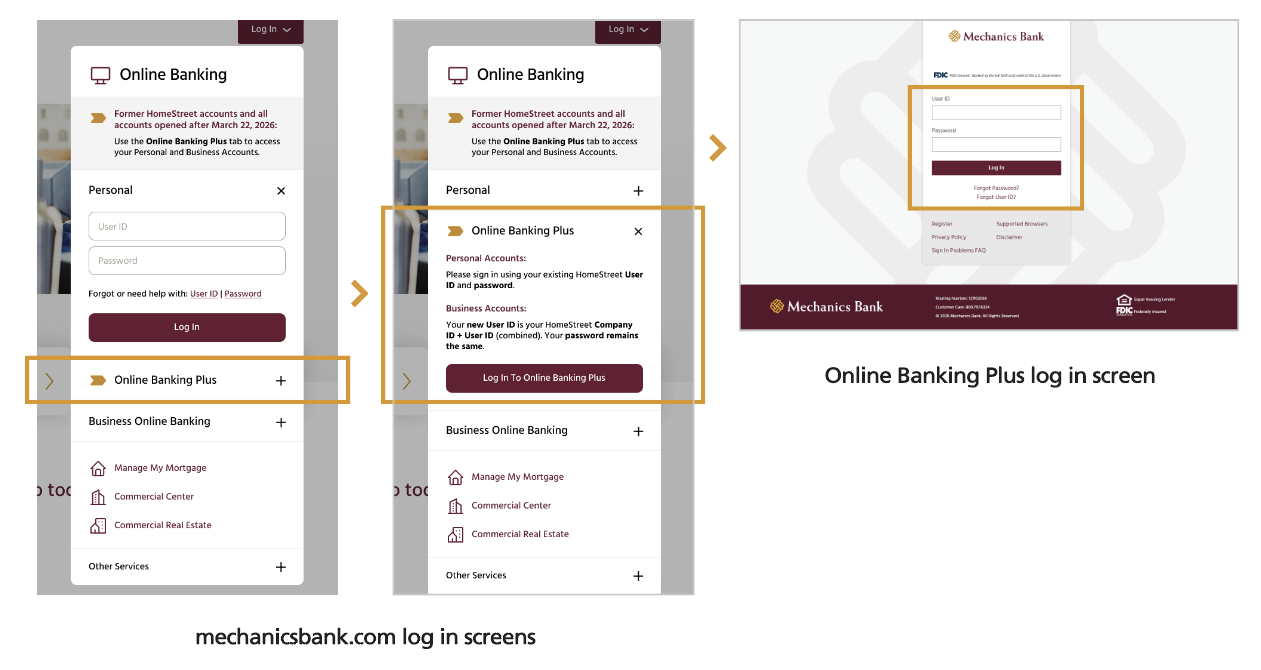
  1. Go to mechanicsbank.com
  2. In the log in box in the upper right, ensure that you click on Online Banking Plus (note that there are two personal online banking platforms to choose from. Please be sure to select Online Banking Plus).
  3. Then click on the Log In to Online Banking Plus button
  4. Enter your current HomeStreet online banking User ID and Password
    • User ID is NOT case sensitive
    • Password is case sensitive
    • Make sure you are using the correct last name (not case sensitive). If you have two last names (hyphenated, etc.) use your last "last name"
    • Make sure you're using the correct email address (not case sensitive) that you had when you registered for HomeStreet online banking
  5. A new window will ask you for additional, required information that will be familiar to you
  6. Upon verification, you will be asked how you wish to receive a one-time passcode: via voice call, text or email
  7. You will need to provide this one-time passcode to set up your new password
  8. Once you read and accept the Terms & Conditions, your access will be granted

As of March 23, 2026, your current Personal Mobile Banking app has changed to the Mechanics Bank Online Banking Plus app.

Please follow the new first-time log in instructions below.

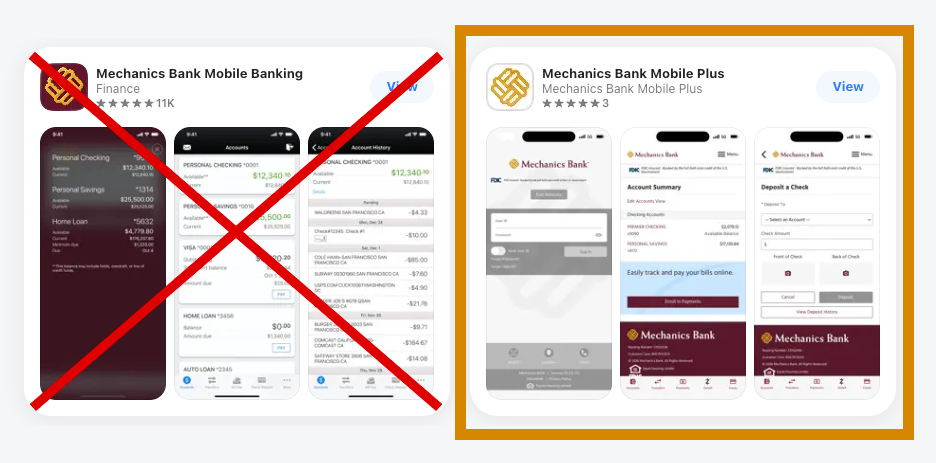
  1. Download the Mechanics Bank Mobile Plus app from the appropriate Apple or Google Play store. 
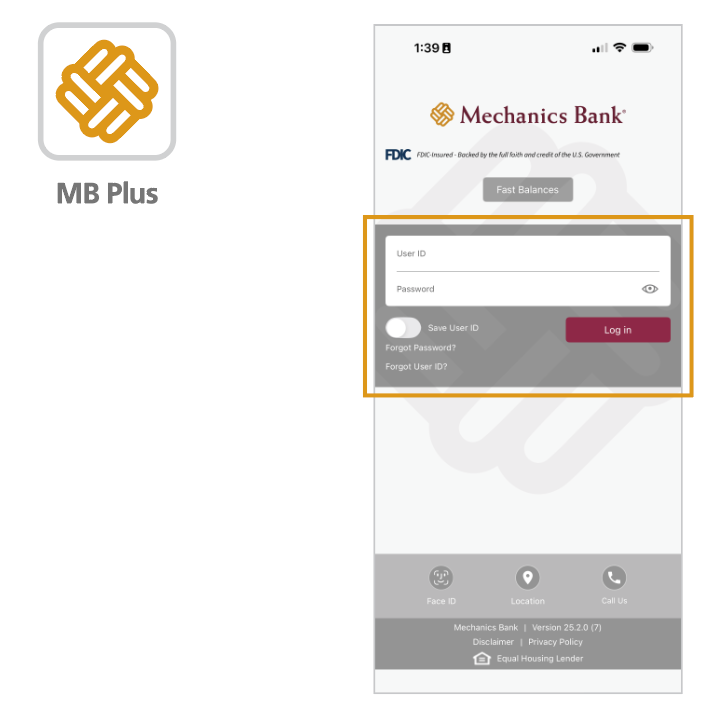
    • Search the Apple App Store using "MB Plus" to find the specific app titled "Mechanics Bank Mobile Plus." In the Google Play Store, search using "Mechanics Bank Mobile Plus" and scroll down to find the specific app titled "Mechanics Bank Mobile Plus." It's the white and gold app icon!
    • The other Mechanics Bank mobile apps will NOT work with your account. Click on the appropriate app store link below to get to Mechanics Bank Mobile Plus.


    Apple Store   Google Play

  1. Enter your current HomeStreet online banking User ID and Password
    • User ID is NOT case sensitive
    • Password is case sensitive
    • Make sure you are using the correct last name (not case sensitive). If you have two last names (hyphenated, etc.) use your last "last name"
    • Make sure you're using the correct email address (not case sensitive) that you had when you registered for HomeStreet online banking
  2. A new window will ask you for additional, required information that will be familiar to you
  3. Upon verification, you will be asked how you wish to receive a one-time passcode: via voice call, text or email
  4. You will need to provide this one-time passcode to set up your new password
  5. Once you read and accept the Terms & Conditions, your access will be granted

Contact Us


Find us
Locate a banking center, look up hours, or search for
surcharge-free ATMs


Call us at 800.719.8080
Reach out and talk to a live person, ready to help
answer your questions.